
ScreenToVideo Review: A Complete Look at This Powerful Screen Recorder and Video Editor
ScreenToVideo is a great choice for creators who want advanced features without paying for a subscription.
Today, it’s important to have a tool that lets you quickly record, edit, and share high-quality videos.
In this review, I'll cover what ScreenToVideo offers, how easy it is to use, its pricing, how it compares to other tools, and whether it's a good fit for your 2026 video projects.
What This Blog Covers
This screen recorder and video editor review dives into ScreenToVideo, its features, performance, strengths and weaknesses, and how it compares against similar products on the market.
Main Features Overview
All‑in‑one screen recording and video editing tool
Supports MP4 export, webcam capture, and system sounds
Text-to-speech with Google Cloud and SSML support
Drawing, shapes, animations, blur, zoom, annotations
Interactive HTML player, customizable screen recorder
Advanced video editing capabilities and timeline tools
Lifetime deal on AppSumo for long‑term value
Pros & Cons Summary
✅ Useful tool with both screen recording and video editing
✅ Great advanced features like SSML, interactive HTML, and animations
❌ Steep learning curve and less user-friendly interface
❌ Limited built‑in music import options
⚠️ Text‑to‑speech voices vary greatly in quality
What Is ScreenToVideo?
Now, let's take a closer look at what ScreenToVideo has to offer.
ScreenToVideo is an all‑in‑one screen recording software that combines powerful screen capture with a full video editor. Creators can record their screen, edit, animate, add text, and export professional-quality video content in MP4, GIF, WebP, WMV (Windows Media Video), and other formats.
Currently, you can get ScreenToVideo through a lifetime deal on AppSumo.
It’s made for anyone who wants screen recording and video editing without paying ongoing fees in 2026. Marketers, educators, vloggers, trainers, and other professionals who need advanced, customizable tools will find it useful.
System Requirements for ScreenToVideo
Before installing ScreenToVideo, make sure your device complies with the following minimum specs:
Operating System: Windows 11 / 10 / 8 / 7 (64-bit only required)
Processor (CPU): Intel Core™ i-series or AMD Phenom® II and above
Screen Resolution: Minimum 1280 x 720 with 32-bit color or higher
Hard Disk Space: At least 500 MB for installation
Memory (RAM): Minimum 2 GB RAM required
These requirements are modest, so most modern Windows PCs should run ScreenToVideo smoothly, especially for everyday screen recording and editing.
Key Features & Unique Capabilities
List Of Features
1. Recording Capabilities
Record the entire screen, selected windows, or specific regions.
Webcam overlay with picture‑in‑picture
Capture system sounds, microphone, or both.
Instant screenshots while recording
2. Advanced Video Editing Tools
ScreenToVideo includes a solid timeline editor with features like:
Trim, split, cut, delete, ripple, and other trims
Animation and transforms on objects.
Text and animated text
Blur, shapes, highlighting, drawing tools
Zoom, pan, cursor effects
This setup lets the tool work as both a screen recorder and a video editor, bridging the gap between simple recording and advanced video production.
3. Text‑to‑Speech with AI Features
A capability highlighted in this review is the text-to-speech functionality:
Use SSML (Speech Synthesis Markup Language) to fine‑tune pitch, rate, volume, and pronunciation.
Google Cloud offers multiple language and voice options that are ideal for creating voiceovers without recording live audio. According to Google Cloud, its Text-to-Speech feature generates speech with a natural, human-like quality, making it sound like a real person.
4. Customization and Export Options
Export to MP4, GIF, WMV (Windows Media Video), and more
Share directly online or upload to Google Drive.
Interactive HTML player for embedding
Multiple screen sizes and formats supported
5. Professional Editing Tools
Beyond basic trimming and export, ScreenToVideo offers:
Chroma key background removal
Keyframes and animation curves
Caption import/export
Import media, images, and other videos
Timeline selection and object inspector for accuracy
These professional editing features give creators flexibility and control usually found in expensive, subscription-based software. This makes ScreenToVideo a powerful and affordable alternative.
Ease of Use & Learning Curve
When you first use ScreenToVideo, there is a learning curve:
Many functions require trial and exploration.
Some editing actions (like deleting shapes) are buried in toolbars instead of keyboard shortcuts.
A significant learning curve exists before mastering advanced features.
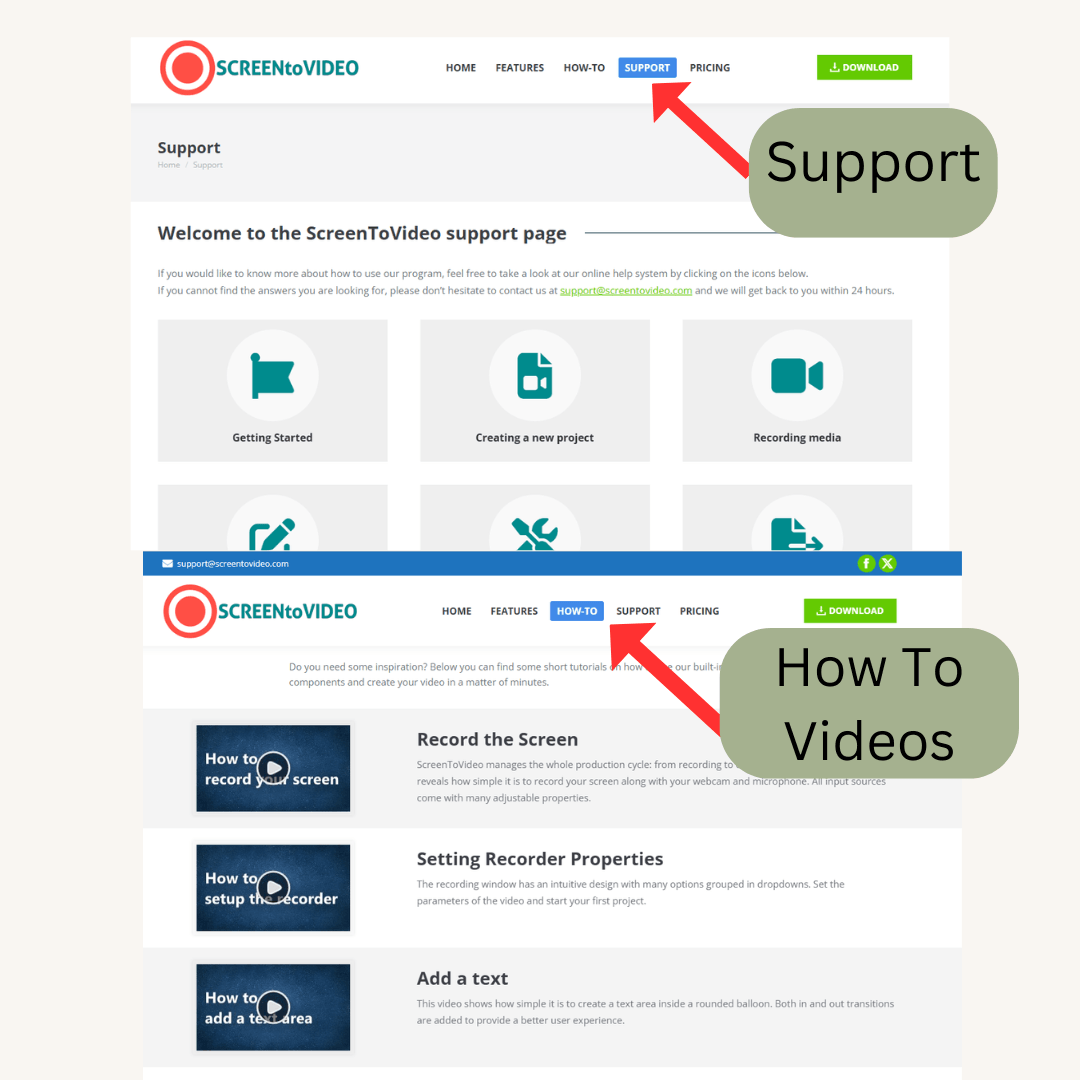
The software includes tutorial videos and a how-to section to help you learn.
Its record-and-edit features can also help users with little experience.
ScreenToVideo offers a range of functionality, though beginners may experience a steeper learning curve than with tools known for a more user-friendly approach.
Performance & Editing Workflow
ScreenToVideo delivers high‑quality screen recording with flexible output formats and is capable of professional video creation workflows:
Smooth capture up to high resolutions
Rich editing functions for post‑production
Tools like zoom, pan, keyframes, and cursor effects help create polished videos.
Export options make sharing easy.
The interface isn’t as easy to use as some editors, but ScreenToVideo gives you a lot of features for the price, especially with the AppSumo lifetime deal.
How to Start Using ScreenToVideo Onboarding & User Experience
🎬 Step-by-Step Onboarding Guide
1. Visit the Official Website
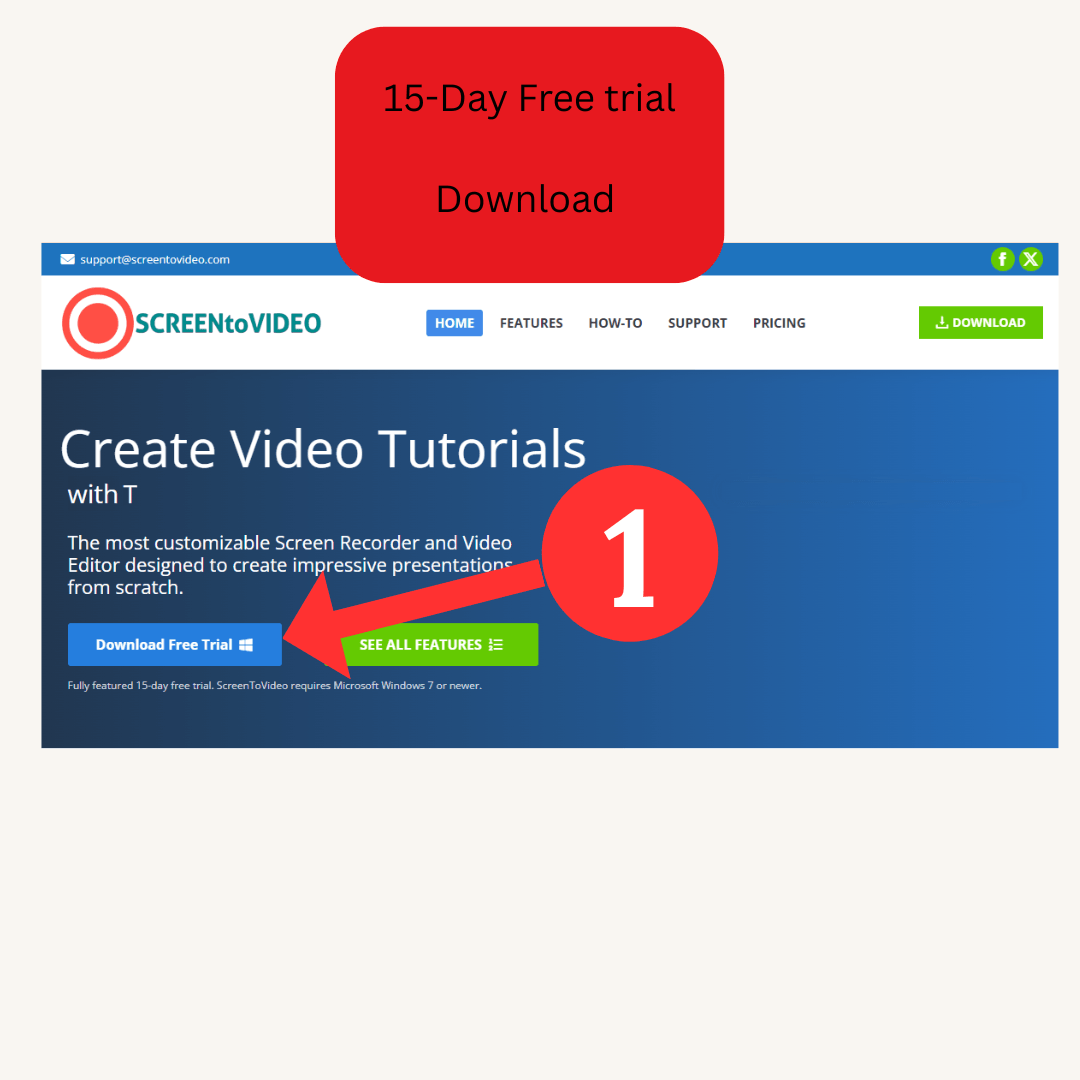
Go to ScreenToVideo.com and download the software. You’re welcome to start with the full-featured 15-day free trial — no feature restrictions.
2. Install the Application
Once downloaded, install ScreenToVideo on your Windows (64-bit) computer. Follow the setup prompts until installation is complete.
3. Launch & Start Recording
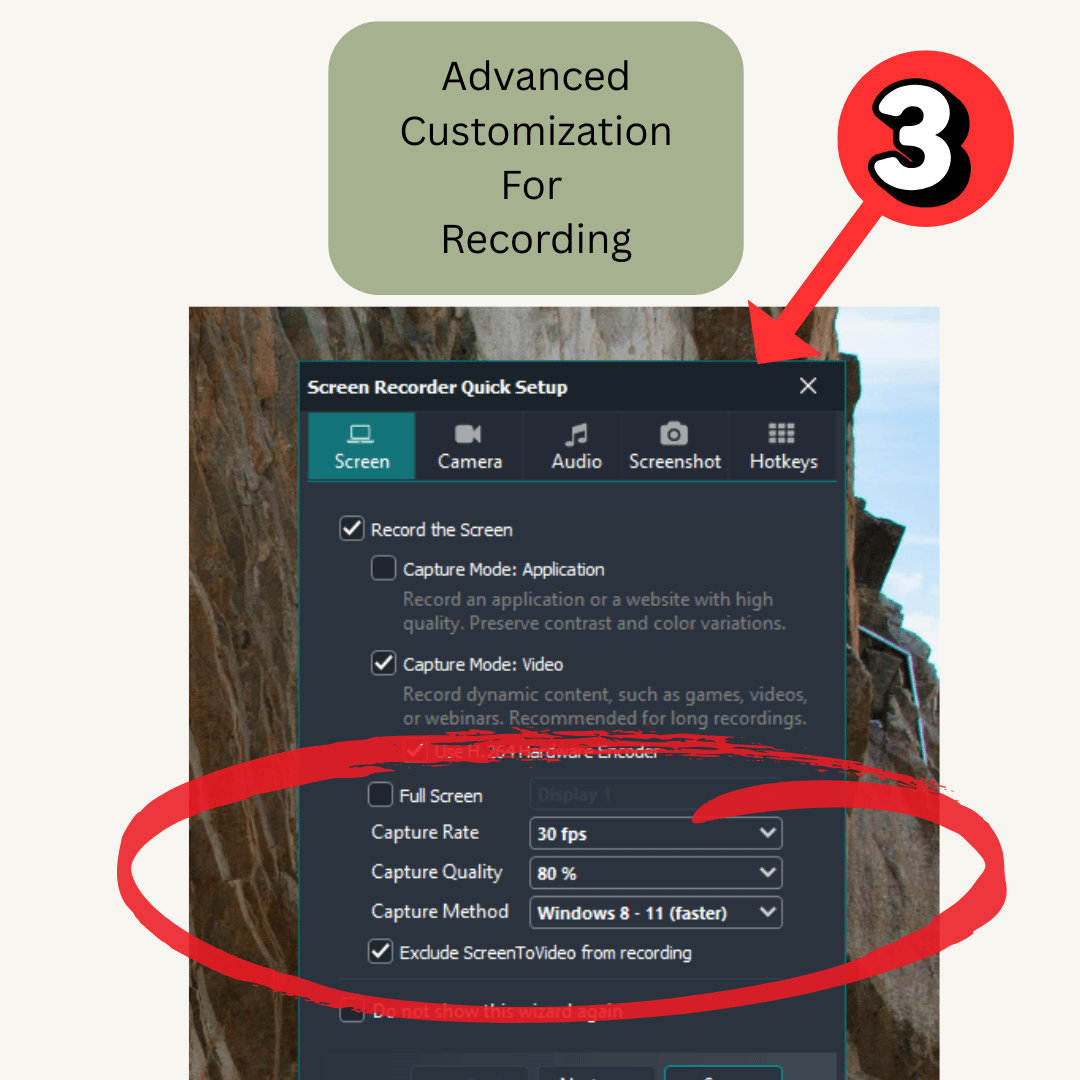
Open the app and click the "Record" button on the top toolbar. You can:
Record your entire screen, an application window, or a selected region
Add voiceover narration during capture
Capture system sounds or external mic input
Use the built-in timer to prepare before recording starts
4. Edit Your Recording
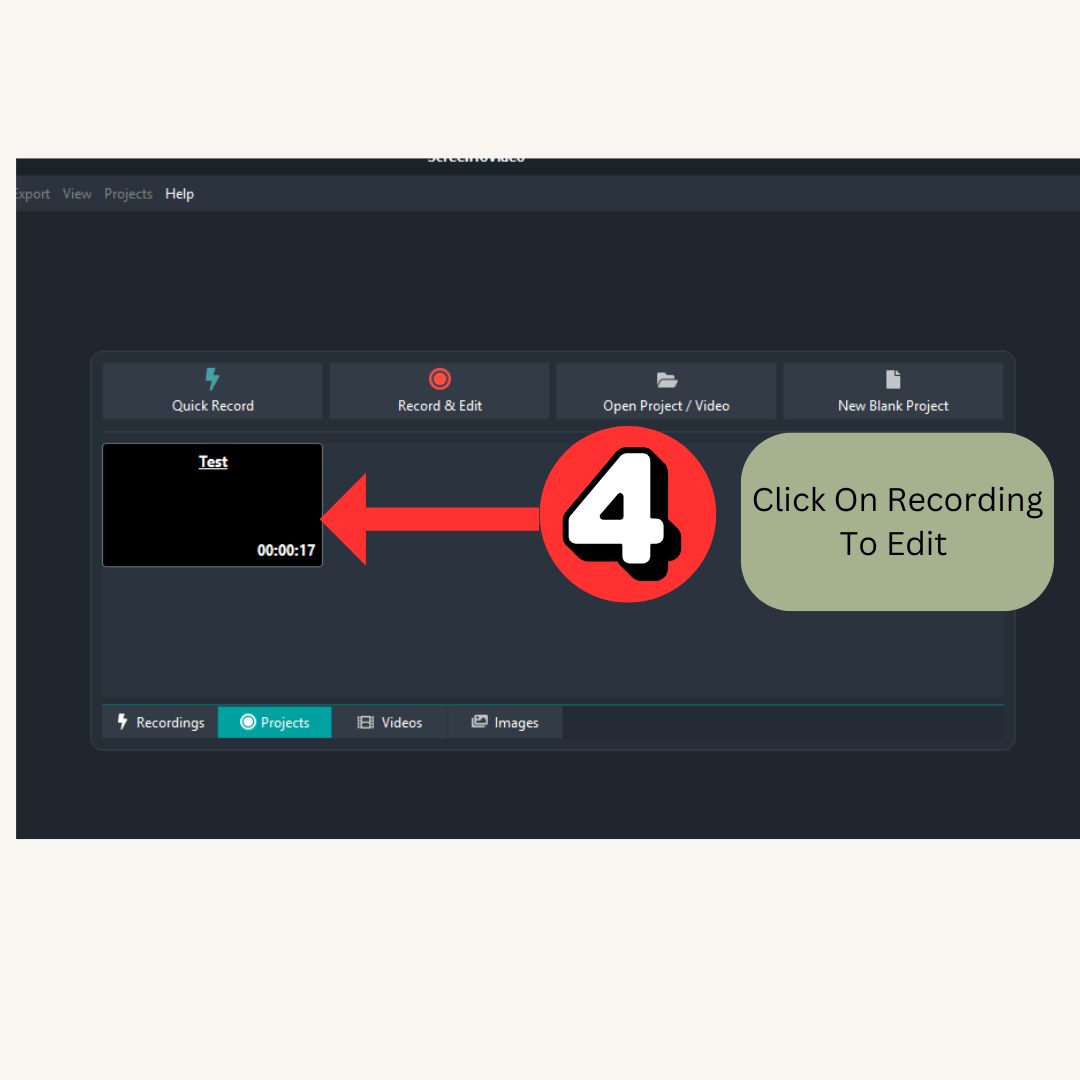
After recording, a link to your video will appear. From here, you can:
Trim, crop, split, or rearrange clips on the timeline
Add zoom, pan, or transition effects to guide viewer focus
Insert images, shapes, text, or animations for clarity or emphasis
Use Text-to-Speech powered by Google Cloud TTS or Microsoft SAPI
5. Preview and Export
Once editing is complete:
Preview all your changes in the editor
Export your video in the format of your choice: MP4, WMV, or GIF
Your final video is now ready to be shared, uploaded, or embedded anywhere
Pricing & Value for Money
One of the biggest pros is the ScreenToVideo lifetime deal on AppSumo:
Lifetime access with no subscription
With a one-time payment for lifetime access, ScreenToVideo is a budget-friendly alternative to subscription services. You can keep using it without worrying about ongoing costs.
Great match for anyone producing ongoing video content.
⚙️ Real World Experience Using ScreenToVideo
I personally use ScreenToVideo in several practical ways:
To record videos when asking for help with technical or software issues across various platforms
To show my team the areas in my writing that need fixing or improvement
To create and upload "how-to" videos to YouTube
To record tutorials for digital products I sell (like Google Sheets), helping users learn how to get the most out of them
Other real‑world users find ScreenToVideo helpful for:
Trainers and teachers recording lessons with webcam and screen
Content creators producing tutorials with captions, blur, and animations
Marketers making product demos and walk‑throughs
Bloggers and social content creators are producing quick, polished videos to share or sell
Pros and Cons of ScreenToVideo
| ✅ What I Love About ScreenToVideo | ⚠️ Where ScreenToVideo Could Be Better |
|---|---|
| ✅ All-in-one screen recorder and video editor with professional features | ❌ Steep learning curve, especially for beginners |
| ✅ One-time lifetime deal available via AppSumo | ❌ Interface looks outdated and is less intuitive than competitors |
| ✅ Advanced text-to-speech support including Google Cloud + SSML | ❌ Some features (like deleting elements) are hidden and hard to discover |
| ✅ Supports animations, blur effects, cursor highlights, and voiceover | ❌ Background music import isn’t straightforward |
| ✅ Export directly to MP4, GIF, or upload via Google Drive | ❌ Text-to-speech quality varies depending on provider (Google vs. Microsoft) |
| ✅ Interactive HTML player, zoom, annotations, and customizable elements | ❌ No built-in AI to auto-edit or suggest improvements like some competitors |
✅ What I Love About ScreenToVideo
Powerful screen recorder and video editing tool all in one
Lifetime deal on AppSumo for unbeatable value
Text‑to‑speech with SSML and Google Cloud support
Advanced animation, blur, shapes, and customizable elements
Export to multiple formats, including GIF and MP4
The interactive HTML player provides an additional feature within the software.
⚠️ Where ScreenToVideo Could Be Better
Steep learning curve for beginners
The interface is not very intuitive.
TTS voices vary in quality between providers
Requires installation on your desktop, which will use some disk space.
Pricing & Value for Money
💵One of the biggest pros is the ScreenToVideo lifetime deal on AppSumo:
Lifetime access with no subscription
With a one-time payment for lifetime access, ScreenToVideo is a budget-friendly alternative to subscription services. You can keep using it without worrying about ongoing costs.
Great match for anyone producing ongoing video content.
Comparison: ScreenToVideo vs Zight vs Loom vs Clipchamp vs Camtasia
How ScreenToVideo Compares
ScreenToVideo stands out by offering advanced editing, special effects, and big savings with its lifetime deal.
It gives you more customization than Loom or Zight and matches Camtasia's professional features at a much lower price.
While it’s not as easy to use as Clipchamp at first, its many tools and long-term value make it a great choice for creators who want flexibility and a smart investment.
✅ Zight (Best for Simple Recording + Team Collaboration)
Zight (formerly CloudApp) is a lightweight screen recorder and sharing platform that specializes in quick capture and easy online storage. It lets you capture full screen or selected areas, create GIFs, and add annotations. It's especially strong for team collaboration and link‑based sharing of short clips.
Why do people like Zight
Simple interface that gets you recording and sharing fast
Good basic annotation tools are built into the recorder.
Cloud storage and embed/sharing options make it handy for teams.
🚫 Limitations: Not as powerful as ScreenToVideo for detailed video editing, animations, or production‑level finishing.
✅ Loom (Best for Quick Tutorials and Communication)
Loom is centered around fast screen and webcam recordings and instant sharing. It’s ideal for educational walkthroughs, team updates, and simultaneous communication. Loom automatically generates shareable links, and its editing tools focus on trimming, editing by transcript, and basic video stitching.
Why Loom stands out
Very intuitive, letting you start recording in seconds
Automatic cloud sharing with simple links
Basic in-app trimming, transcript-based editing, and quick video stitching
Limitations: Editing capabilities remain fairly basic compared to ScreenToVideo's timeline and animation capabilities, according to Loom's official support page; Loom is not ideal for deep editing projects.
✅ Microsoft Clipchamp (Best for Everyday Creators & Browser‑Based Editing)
Clipchamp balances simple recording with traditional video editing. It lets you capture your webcam and screen, use a drag-and-drop editor, and do basic trimming and transitions. In 2026, people like that it works right in your browser without needing a big install.
Why Clipchamp is compelling
Clean, easy-to-use interface for quick edits
Combined recorder + video editor in one tool
Useful templates and basic editing effects
🚫 Limitations: Not as feature‑rich for professional workflows; preview and responsiveness can lag compared to desktop tools.
✅ Camtasia (Best for Professional Screen Recording + Editing)
Camtasia has been a benchmark in screen recording and editing for years. It captures screen, webcam, system audio, and mic recordings. Camstasia lets you edit with multi‑track timelines, cursor control, and motion effects. It's ideal for professional tutorials, training videos, and polished presentations.
Camtasia's strengths
High‑quality multi‑track editing and control
Rich library of transitions, effects, and callouts
Deep timeline tools for professional video production
🚫 Limitations: Higher cost and steeper learning curve than tools like Loom or Clipchamp; overkill for quick clips.
| Tool / Platform | Pricing | Type | Best For | Limitations |
|---|---|---|---|---|
| ScreenToVideo | $59 one-time (lifetime deal via AppSumo) | Lifetime Deal | All-in-one recording and advanced editing on Windows | Steep learning curve, less intuitive UI |
| Zight (CloudApp) | Free plan; Pro starts ~$8–$10/month | Subscription | Quick screen capture and team sharing | Basic editing; lacks full video production tools |
| Loom | Free Starter; $15–$20/month for Pro/AI | Subscription | Fast team comms and screen walkthroughs | Limited editing; no deep animations |
| Microsoft Clipchamp | Free core; Premium via Microsoft 365 | Freemium | Beginner-friendly browser-based editing | Basic effects; limited to casual use |
| Camtasia | Starts ~$179.88/year; higher tiers up to $599/year | Premium Subscription | Professional screen recording + video editing | Expensive; complex for new users |
🔐 Is ScreenToVideo Safe and Secure?
Like most screen recording software, ScreenToVideo runs on your own computer.
It won't upload your content unless you allow it, so privacy risks are low if you trust where you download it from.
If you're worried about safety, check the official documentation and your computer's security settings before installing.
✉️ Customer Support & Community
I contacted ScreenToVideo’s support through the chat box on their website on January 21st, 2026, at 9:56 a.m. Pacific Time. I had several questions, especially about adding background music and using Google Text-to-Speech.
I received a reply on January 23rd, 2026, at 2:20 a.m., which was a reasonable delay, noting that my question was sent over the weekend.
Here’s the summary of their response:
Background music can be added by importing your own audio file directly into the editor. They even provided a link to a tutorial video for this process.
Google Cloud Text-to-Speech is supported but requires a separate paid subscription and API credentials from your Google account. To set it up, you'll need to sign up for a Google Cloud account, obtain an API key, and enter it in the app. This setup makes sure integration stays correct and configured for use.
The reply was professional, and the instructions were straightforward.
Overall, even though the response took a bit of time due to the weekend, the support team was courteous, clear, and highly practical in their answers.
I appreciated that they not only addressed my questions directly but also provided a helpful tutorial link for further guidance. The tone was professional, and the instructions were easy to follow.
💪This level of responsiveness gives me confidence that ScreenToVideo is a tool worth investing in, not just for its features but for the reliable support that comes with it.
Frequently Asked Questions (PAAs)
Is there a reliable review of popular screen‑to‑video recording software?
Yes, this ScreenToVideo review gives you a detailed look at its features, pros and cons, and how it compares to other tools.
What are the pros and cons of different screen-capture-to-video converters?
Tools vary primarily in ease of use, editing power, automation, and export options. ScreenToVideo is great in features,customizable video editing, and shareable format options.
Are there affordable screen‑to‑video recording products with good reviews?
Yes, ScreenToVideo’s lifetime deal on AppSumo makes it one of the most affordable tools with strong editing features for professional video creation.
What are the best alternatives to well‑known screen‑to‑video software?
Top alternatives include Microsoft Clipchamp, Camtasia, Zight, Loom, and others, with their own own strengths depending on your needs.
Can I upload videos made with ScreenToVideo to YouTube?
Yes, you can. ScreenToVideo lets you export videos in formats like MP4 and WMV, both of which are supported by YouTube. Just export your video in one of these formats and upload it directly to your YouTube channel.
Pros:
✅ One-time lifetime deal with no monthly subscription
✅ Combines screen recording and video editing in one desktop tool
✅ Includes advanced text-to-speech with SSML and Google Cloud support
✅ Supports MP4 export, annotations, shapes, blur, zoom, and voiceover
✅ Allows creation of interactive videos with HTML player and buttons
✅ Great for creating product demos, tutorials, and digital product training
✅ Helpful customer support with a detailed response and video links
Cons:
❌ Interface is not very intuitive and looks outdated
❌ Some key functions (like deleting objects) are hard to find
❌ Google Cloud TTS requires a separate paid API key
❌ No built-in background music library or AI-assisted editing
❌ Only available for Windows 64-bit systems
Final thoughts?
ScreenToVideo isn’t as sleek as some browser-based tools, but it delivers deep editing capabilities and full-screen recording power at a fraction of the cost.
If you're a content creator, educator, or business user looking for a one-time investment to handle your video creation and editing workflows, ScreenToVideo is a powerful and budget-friendly choice. 🎬💻
💡 Final Verdict:
IS ScreenToVideo Worth It?
If you’re willing to spend some time learning how to use it, ScreenToVideo gives you professional video features with a one-time cost that few competitors can match.
If you want strong editing tools, lots of customization, and flexible export options, it’s worth considering as your all-in-one screen recorder and video editor.
ScreenToVideo is best for creators who need advanced editing and want long-term value from a single purchase. It’s a great choice for professionals, educators, marketers, and vloggers who want to make quality content without paying ongoing fees.
Ready to Try ScreenToVideo?
If you’re looking for a powerful yet affordable way to record your screen and create polished video content, ScreenToVideo is a smart choice.
With its lifetime deal, built-in editor, and customizable features, it’s perfect for creators, educators, and professionals who want control without a steep price tag. Give it a try and start creating in minutes.
💬 Want to share your own experience? Drop them in the comments, I'd love to hear about your experience with ScreenToVideo.
ScreenToVideo Review: A Complete Look at This Powerful Screen Recorder and Video Editor
© JustSimpleInsight.com